Diagram View (Auto-Layout)🔗
The diagram view feature allows you to automatically layout existing Capella diagrams using the ELK (Eclipse Layout Kernel) layout engine. This is useful when you want to:
- Regenerate diagrams with consistent, automated layouts
- Apply different layout algorithms to existing diagrams
- Export diagrams from Capella with better spacing and organization via capellambse
Overview🔗
Instead of manually creating context diagrams from model elements, you can take any existing diagram from your Capella model and have it automatically laid out. The auto-layout feature:
- Preserves all elements and connections from the original diagram
- Applies ELK layout algorithms for optimal positioning
- Supports these diagram types (SAB, SDFB, LAB, LDFB, PAB, PDFB)
- Maintains proper component hierarchy
- Supports PVMT styling
- Allows customization of spacing and layout options
Basic Usage🔗
Access the auto-layout version of any Capella diagram using the auto_layout accessor:
import capellambse

model = capellambse.MelodyModel("path/to/model.aird")

diagram = model.diagrams.by_name("[LAB] My Logical Architecture")
auto_diagram = diagram.auto_layout
auto_diagram.render("svg").save("output.svg", pretty=True)
Examples🔗
System Architecture Diagram (SAB)🔗
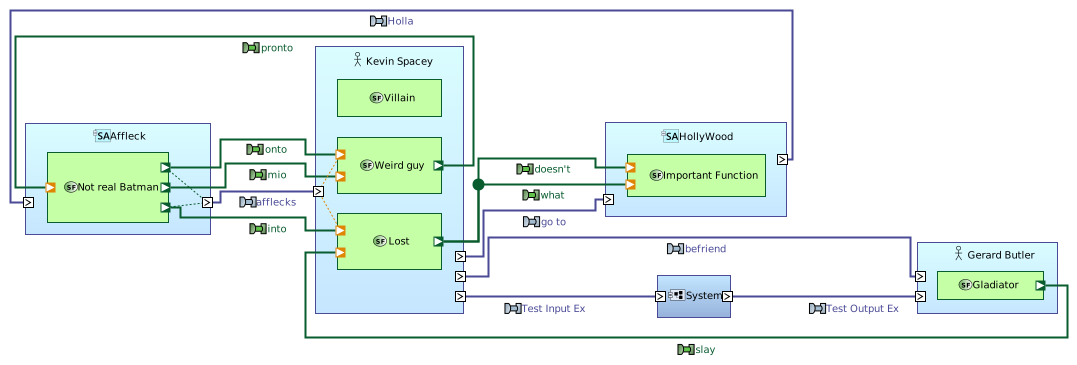
The following example shows an automatically laid out System Architecture Blank diagram:
Code to generate SAB diagram
import capellambse

model = capellambse.MelodyModel("path/to/model.aird")
diagram = model.diagrams.by_name("[SAB] Example Interface Context")
auto_diagram = diagram.auto_layout
auto_diagram.save("sab_diagram.svg", "svg")
Logical Architecture Diagram (LAB)🔗
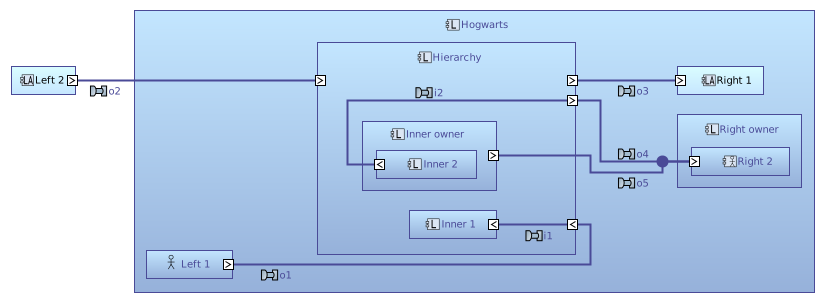
Automatically laid out Logical Architecture Blank diagrams maintain component hierarchy:
Code to generate LAB diagram
import capellambse

model = capellambse.MelodyModel("path/to/model.aird")
diagram = model.diagrams.by_name("[LAB] Hierarchy")
auto_diagram = diagram.auto_layout
auto_diagram.save("lab_diagram.svg", "svg")
Physical Architecture Diagram (PAB)🔗
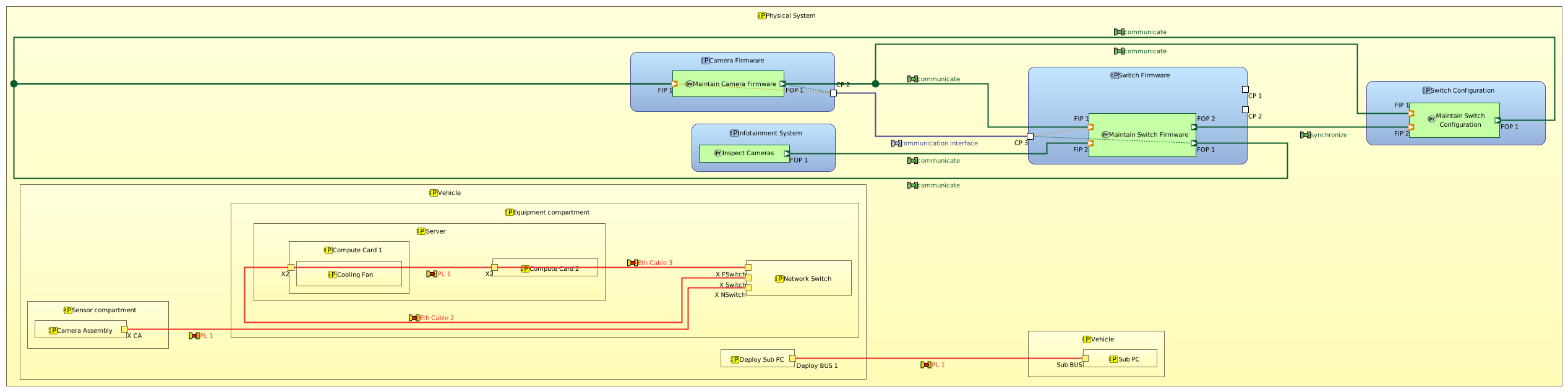
Physical Architecture Blank diagrams show functions and their connections:
Code to generate PAB diagram
import capellambse

model = capellambse.MelodyModel("path/to/model.aird")
diagram = model.diagrams.by_name("[PAB] Example Physical Function Context Diagram")
auto_diagram = diagram.auto_layout
auto_diagram.save("pab_diagram.svg", "svg")
Render Parameters🔗
The auto-layout feature supports several render parameters to customize the output:
- Port Labels
- PVMT Styling
- Display Symbols as Boxes
- Port Allocation handling
Layout Spacing🔗
The auto-layout feature uses optimized spacing values for better diagram organization:
- Node-to-Node Spacing: 10px between adjacent nodes
- Edge-to-Node Spacing: 10px between edges and nodes
- Edge-to-Edge Spacing: 10px between adjacent edges
- Layer Spacing: 5px between elements across layers
These spacing values are automatically applied and result in compact, well-organized diagrams.
Technical Details🔗
Component Hierarchy🔗
The auto-layout feature correctly handles component hierarchy by:
- Using the proven hierarchy logic from context diagrams
- Properly traversing the Capella model's Part/Component relationships
- Maintaining parent-child nesting in the output
- Supporting arbitrary depth of component nesting
Supported Diagram Types🔗
For now the following Capella diagram types are supported:
- SAB - System Architecture Blank
- SDFB - System Data Flow Blank
- LAB - Logical Architecture Blank
- LDFB - Logical Data Flow Blank
- PAB - Physical Architecture Blank
- PDFB - Physical Data Flow Blank
Limitations🔗
- The auto-layout feature does not modify the original Capella diagram
- Layout is computed at render time and may take a few seconds for large diagrams
- The layout algorithm optimizes for data-flow, which may result in large areas of white space for diagrams with large sub-graphs. Looking into other layouting algorithms might be a solution.
See Also🔗
- Context Diagrams - Create diagrams from model elements
- Styling - Customize diagram appearance
- Filters - Filter diagram elements